
[PR]上記の広告は3ヶ月以上新規記事投稿のないブログに表示されています。新しい記事を書く事で広告が消えます。
By buying up HTC, Google is committing to the Pixel, and forging ahead into its past.
Google officially announced that it would buy HTC. For $1.1 billion, the search giant will be acquiring only only the Taiwan-based tech company, but also the engineering team that designed the terrific Google Pixel. That's right: Google is buying up the very folks who made its flagship phone.
This isn't a total surprise, since the Pixel went over quite well. But it is a little strange because, well, Google's been down this road of buying a company that makes Android phones before, and it changed its mind. Buying up HTC means Google's flagship Pixel phone is here to stay—and the decision might shake up the future of Android.
Unlike iPhones—which are pure Apple phones, designed chips-to-software by Tim Cook and company—the lineage of an Android phone is more complex. Google makes the Android software (to which your carrier adds its extra bloatware), but companies like Samsung and LG make the actual hardware and, accordingly, put their names on the phones. It's the Samsung Galaxy S8, after all.
This approach has its pros and cons. Google gets its software (apps and services it uses to sell ads) in front of hundreds of millions of people without having to worry about hardware. And there are hundreds of Android phones: big, small, cheap, expensive, good, bad, something for every conceivable taste. This distribution of labor and flexibility lead to an Android explosion, and Google's domination of the global market share.
It also means that Google doesn't have the soup-to-nuts control of its product. That power is part of the reason that for years now iPhones have been undeniably more polished than their Android competitors, and why now, even though Android is slicker than ever, it is woefully vulnerable to security problems. Apple can just send out iOS updates, but Google needs to work with is many hardware partners and phone carriers to make that happen. As a result, woefully few Android phones run the latest, safest version of the software. A truly Google phone, like the Pixel, can fix that.
Google has toyed with the premise before, having purchased Motorola in 2012. But difficult relationships with hardware partners prevented Google from doing anything too wild. It released only two (terrific) Google-backed Motorola phones before selling off the company (though hanging onto some extremely valuable patents) and returning to its "Nexus" program—a partnership between Google and rotating hardware partners to create an "ideal" Android phone.
Google's latest move to hire the HTC team responsible for the Pixel represents a renewed, serious push at creating the mythical "iPhone of Android." But such a project will now encounter world that's totally changed. With its voice-assistant "Bixby" and a growing suite of exclusive apps, Google's most formidable hardware partner, Samsung, is increasingly striking it out on its own, shifting users away from the Google services the search giant uses to make money even while it sticks with Android at the core. Meanwhile, the Pixel will push its users deeper and deeper into Google's web, offering things like limitless Google Photos storage, and all-important security updates that come as quickly as possible.
Practically, Google's purchase of the HTC doesn't mean a whole lot in the short term. Those folks have been working on Google hardware exclusively for years. But it does mean that the Pixel is likely here to stay as just one of the many arms of Google's growing hardware Kraken.
l HP 611484-001 Computer Power Supply
l battery Dell GC3J0 for 3.7V 16WH Tablet PC
l battery Apple A1484 for ipad5 iPad Air 1st Gen + Tools
l SONY AGPB009-A003 cellphone battery for Sony Xperia GO ST27i ST27 1265mAh with Tools
l APPLE 616-0613 cellphone battery for Internal Battery For iPhone 5 5G with Suction Tools

Model Number : RM112 WU136 PW116 G185T
Size :210MM*80MM*62MM*45MM
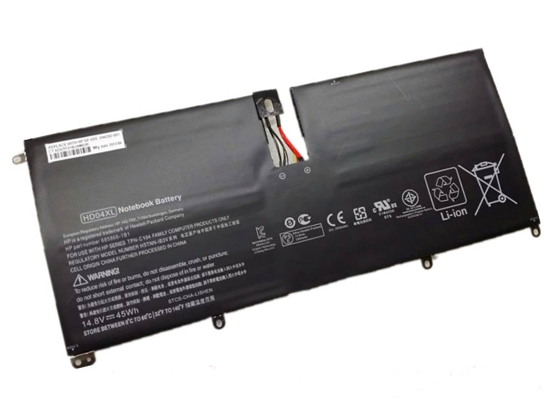
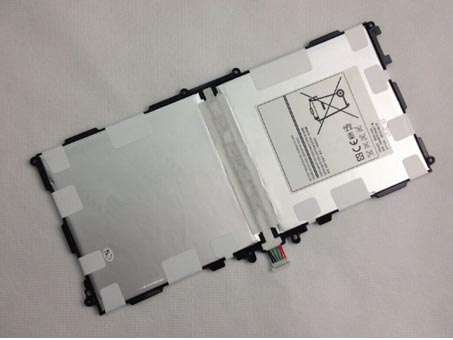
Replacement Battery>> battery for Samsung Galaxy Note Edition P601 P600 10.1inch
Replace the following part numbers:
T8220
Fits the Following Models:
Samsung Galaxy Note 10.1 2014 Edition P601 P600
JP Store: Samsung T8220 battery
Laptop AKKU: AKKUS Für SAMSUNG, Samsung T8220 AKKU Samsung Galaxy Note Edition P601 P600 10.1inch.
SAMSUNG T8220 Our Samsung Galaxy Note Edition P601 P600 10.1inch lithium-ion polymer battery pack is designed to work with Samsung T8220.battery Dell HXFHF for Dell Venue 11 Pro (7130) Tablet
battery Amazon 58-000049 for Amazon Kindle PaperWhite 2nd Gen 6inch
battery Acer AC13A3L for ACER ASPIRE P3-171 11.6inch P3-171-6820 ULTRABOOK
battery Microsoft 1577-9700 for MICROSOFT SURFACE PRO3 3
battery SONY SGPBP02 for Sony SGPT111CN, SGPT112CN, Tablet S2, Tablet S1
battery HP 789609-001 for HP Pavilion 10 Pavilion X2 10-K010NR
If your laptop or PC won’t turn on, don’t panic. You might be able to fix it yourself for free by trying these five methods.
Here we'll explain the possible causes and how to try and fix a PC or laptop that won't boot up.
1. Check the power supply
Laptops
This is one of the most common problems. There are various things that can go wrong, from using the wrong laptop power supply (delivering the wrong voltage) to a blown fuse in the plug.
It might be that your power supply has simply failed. First, make sure the battery has some charge. If you’re not sure, and there’s no power indicator on the battery itself, then remove it entirely and just use the mains charger.
Double-check, too, that the charger is the right one for your laptop. Many laptops – especially from the same manufacturer – use the same size plug, and if you own more than one, it’s not too difficult to plug in the wrong power supply, which might provide a different voltage or not enough current.
Other gadgets may also use the same tips, such as a battery powered speaker, and are unlikely to use the same voltage as your laptop, which typically requires 16-20V.
Second, check the fuse in the plug. Use a screwdriver to remove the fuse and install one that’s known to be good. If you have a spare power cable that will plug into your power supply, this is a much quicker swap to test that it isn’t the fuse at fault.
Check over the wire itself, as power supplies get beaten up, especially if you carry them everywhere. Weak points are at the ends where it joins the black brick and at the plug which connects to the laptop. If you can see the coloured wires inside the black outer protection, it could be time to buy a new PSU.
If you're having problems with your laptop's touchpad, also check out our top tips to fix it.
PCs
PC power supplies can also be problematic. Few people have a spare they can install and test, so the first check is the fuse in the plug. There's also a fuse inside the PSU itself, but it will require you to remove it from your PC and then remove the metal case to check if that's the problem.
One of the most common PC power supply issues is that the PC will turn off unexpectedly rather than fail to boot up at all.
If the LED is on showing that power is reaching it, make sure your power button is properly connected and working.
You can short the appropriate motherboard pins together (check which ones in your motherboard manual) to eliminate the power button from the equation.
2. Check the screen
Laptops
Try disconnecting any external displays including projectors and monitors to make sure they're not stopping your laptop from booting into Windows.
If your computer's power LED lights up and you can hear the hard disk or fan(s) whirring, but there’s no image on the screen, then make the room dark and check that there isn’t a very faint image on the screen.
It’s easy to think a laptop isn’t booting when in fact, it’s the screen that’s the problem.
If there is a faint image – maybe the Windows logon screen – then it’s likely that your screen’s inverter has failed. This component changes the direct current (DC) coming from the battery or power supply to an alternating current required by the screen.
Replacing an inverter isn’t too difficult if you’re handy with a screwdriver, but it’s crucial you buy the right replacement part. As inverters aren’t exactly cheap, you can’t afford to get it wrong.
If your laptop appears to be booting fine, but there’s no image at all, the LCD panel could be at fault. Replacing a laptop screen is possible, but difficult, and screens can also be costly. If it’s an older laptop, it’s worth considering buying a new one.
PCs
There isn't much you can do to fix a broken PC monitor, but it's easy - or easier - to swap the power lead and video cable or even the whole monitor to see if that's the reason your PC won't boot.
3. Remove any USB drives or memory cards
Assuming everything is ok with the power supply and screen, your computer may be getting stuck before it loads Windows.
A classic culprit here is a USB drive or memory card left inserted into a USB port or card reader. Typically you'll see an error message such as "Operating system not found" which can lead to unnecessary panic.
For the majority of the time, it means the BIOS is set to try booting from removable storage drives (including cards) before the internal hard drive.
It could also be a disc left in the DVD or Blu-ray drive, so check those too.
4. Try a rescue disc
If you’re seeing different error messages, or there aren't any cards, external drives or discs causing the problem, try using a rescue disc.
If you have one, the Windows DVD can be used, but otherwise you can download (using another computer – obviously) a rescue disc image and either burn it to a CD or DVD, or extract it to a USB flash drive. You can then boot from this and attempt to fix the problem with Windows.
5. Boot into Safe Mode
Even if you can’t boot into Windows, you might be able to get into safe mode. Press F8 as your laptop is starting up and you’ll get a menu offering to boot into Safe Mode. Here's how to enter safe mode.
6. Check for faulty or incompatible hardware
If you’ve just installed some new memory or another piece of hardware, it might be preventing your computer from booting. Remove it (reinstalling the old memory if necessary) and try again.
If your motherboard has a LED readout showing POST codes, search the manual or online to find out what the code shown means.
Often it can be tricky to get a newly built PC to boot. The best tip here is to disconnect everything except the bare minimum needed to boot to the BIOS:
l Motherboard
l CPU (with heatsink attached)
l Graphics card (if there's a graphics output on the motherboard, remove any plug-in graphics cards)
l One stick of memory (remove any others, and leave the single stick in slot 0 or whichever the manual recommends)
l Power supply
l Monitor
All other hardware is unnecessary: you don't need a hard drive, optical drive or any other components for the PC to start.
l battery Lenovo 45N1727 for Lenovo ThinkPad Tablet 10
l Dell T05W1 battery for DELL Precision 7710 M7710
l Bestec W207D Computer Power Supply
l Dell L240EM-00 Computer Power Supply
l battery Acer AC13F8L for Acer Iconia Tab A1-A810 Tablet Battery AC13F3L 1ICP5/60/80-2